




On this page
Key takeaways
Why bot-free translation wins in client meetings
- Zero lobby disruptions: no “Translator Bot wants to join this call” pop-ups when pitching a new client.
- Works where bots are blocked: enterprise Microsoft Teams, client-hosted Zoom, Tencent Meeting (VooV), and Slack Huddles.
- No third-party cloud recording archives: audio streams live through your browser and is not stored.
- Two-minute one-time setup with free VB-CABLE + desktop Chrome or Microsoft Edge.
Video walkthrough
Watch the 1-minute setup video guide
Follow the exact clicks on screen — switch between Browser (Google Meet), Desktop apps (Zoom / Teams / VooV), and the live call demo.
 Browser setup · Google Meet · 1:08
Step-by-step setup
Ready for your call in 2 minutes
Runs best in desktop Chrome or Microsoft Edge on Windows and macOS.
- Any Meeting App Microphone: CABLE Output
- Any Meeting App Speaker: Headphones (zero echo)
- Chrome: [✓] Also share tab / system audio (0 bots in call)
Install a virtual audio cable (VB-CABLE)
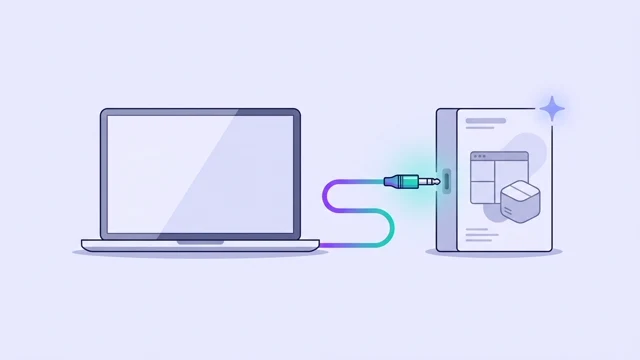
Install free VB-CABLE on Windows or macOS. It adds two local audio endpoints: CABLE Input (speaker side) and CABLE Output (microphone side).
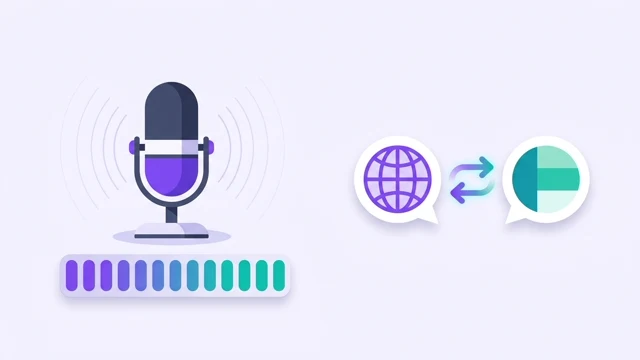
Route outgoing speech: Real Mic → VeyraTalk → CABLE Input
In VeyraTalk, capture your real microphone and play the translated voice to CABLE Input.
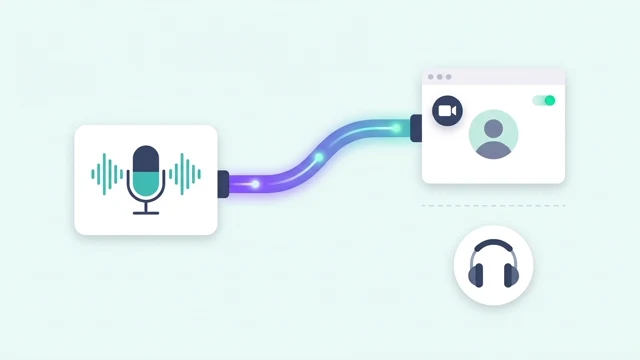
Pick CABLE Output inside your meeting app
Set Microphone = CABLE Output and Speaker = your headphones in Google Meet, Zoom, Teams, VooV, or Slack Huddles.
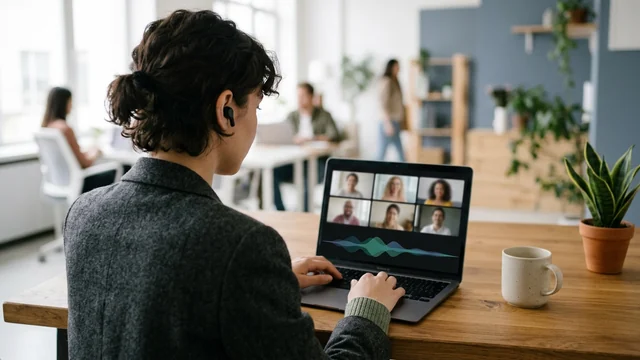
Capture incoming guest audio for live bilingual captions
Share your meeting tab or system audio in VeyraTalk to read your guest’s replies live with side-by-side translation — zero bots required.
Guides
Bot-based translators vs Virtual-mic translators
Understanding the architectural difference helps you pick the right tool for confidential client work.
Visible participant vs invisible audio route
Meeting bots dial in as an extra guest and often announce that the call is being recorded. Virtual-mic routing feeds translated speech straight into your own microphone channel.
Platform lock-in vs universal compatibility
Bots break on Slack Huddles, VooV, or locked-down corporate Teams rooms. A virtual microphone works in any app that lets you choose a microphone.
Transparent consent without surveillance
You can simply tell your client you are using a real-time voice translator that does not record the call — clear, respectful, and NDA-friendly.
Transparent pricing
Simple pricing built for real client hours
Spoken translation, bilingual captions, and live transcription share one monthly credit balance. Paid plans include 14-day refund protection (up to 10,000 credits used).
 Free
 Lite
 Core
 ProPopular
 Max
Yearly billing includes 1 month free. See full plan comparison & calculator →
FAQ
Common questions
Straight answers on setup, pricing, and call privacy before your next meeting.
Will my client hear both my original voice and the translated voice?
No. Because your meeting app listens only to CABLE Output (which receives only VeyraTalk’s translated voice), your client hears only the clean translated audio.
Why do I need headphones?
Headphones prevent your client’s voice from leaking out of laptop speakers back into your physical microphone and triggering false translations.