On this page
Key takeaways
How VeyraTalk works with Google Meet
- Select CABLE Output as your Google Meet microphone so clients hear translated speech directly.
- Capture your Google Meet Chrome or Edge tab audio to read incoming client replies as floating bilingual captions.
- Works on both free Gmail Meet calls and Google Workspace enterprise calls — no Workspace admin approval needed.
- Zero recordings or transcripts stored on our servers — ideal for confidential NDA client calls.
Live audio sample
Hear how the translated speech sounds
Can we move the launch to Thursday?
¿Podemos pasar el lanzamiento al jueves?
Video walkthrough
Watch the 1-minute setup video guide
Follow the exact clicks on screen — switch between Browser (Google Meet), Desktop apps (Zoom / Teams / VooV), and the live call demo.
 Browser setup · Google Meet · 1:08
Step-by-step setup
Ready for your call in 2 minutes
Runs best in desktop Chrome or Microsoft Edge on Windows and macOS.
Google Meet → Settings → Audio
- Google Meet Microphone: CABLE Output
- Google Meet Speaker: Headphones (zero echo)
- Chrome: Pick Meet tab + [✓] Also share tab audio
Install VB-CABLE once
Install free VB-CABLE on Windows or macOS. It adds a virtual audio route between VeyraTalk and Google Meet.
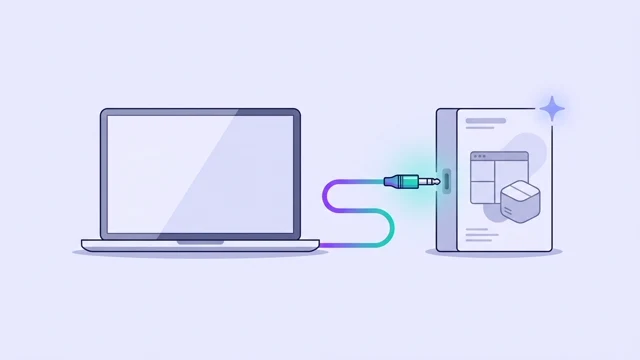
Pick your languages & output in VeyraTalk
Open VeyraTalk in Chrome or Edge, select your real microphone as input, and choose CABLE Input as the translated voice output.
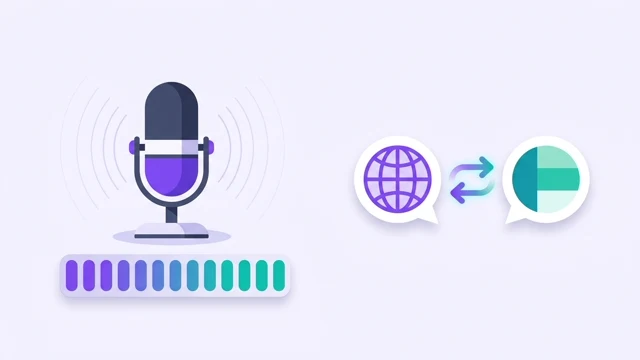
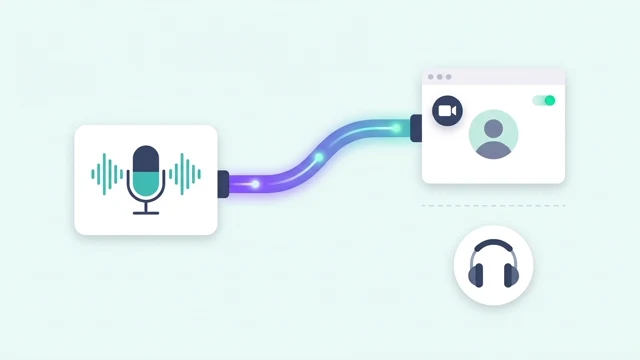
Select CABLE Output in Google Meet
In Google Meet Settings → Audio, set Microphone to CABLE Output and Speakers to your headphones. Keep your headphones on so translated audio never loops back.
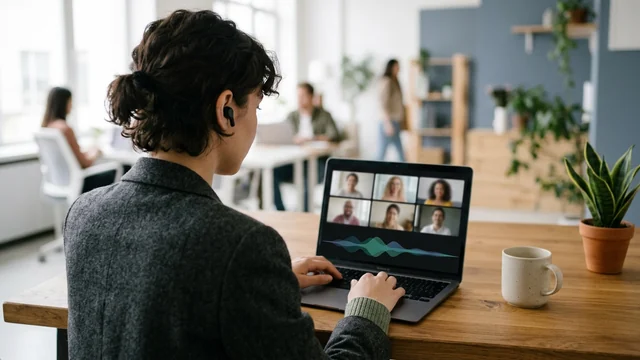
Run the audio check & join your call
Click Play test tone in VeyraTalk to watch Meet’s microphone meter move, share your Meet tab audio for incoming captions, and speak naturally.
Meeting Apps
Built for real client calls on Google Meet
Standard Google Meet captions only show text and require paid Workspace add-ons for translated captions. VeyraTalk gives you live spoken translation plus side-by-side captions on any Meet link.
No awkward bot in the participant list
Clients never see a third-party recording bot asking to be admitted. Your call stays private and professional from the first minute.
Floating captions above your Meet tab
Pin the bilingual caption window on top of Google Meet so you can maintain eye contact while following fast client responses.
Client-specific glossaries & voice
Pin product names, acronyms, and project terms per client profile so Google Meet calls stay accurate from discovery to handoff.
Transparent pricing
Simple pricing built for real client hours
Spoken translation, bilingual captions, and live transcription share one monthly credit balance. Paid plans include 14-day refund protection (up to 10,000 credits used).
 Free
 Lite
 Core
 ProPopular
 Max
Yearly billing includes 1 month free. See full plan comparison & calculator →
FAQ
Common questions
Straight answers on setup, pricing, and call privacy before your next meeting.
Do Google Meet guests need a Chrome extension or VeyraTalk account?
No. Guests join Google Meet normally on desktop or mobile. Only you run VeyraTalk on your computer.
Does VeyraTalk work on free Google Meet accounts?
Yes. Because VeyraTalk works at the browser and virtual microphone level, it works on both free Gmail Google Meet and paid Google Workspace meetings.
How fast do clients hear the translated voice in Google Meet?
Translated speech plays ~1–2 seconds after each natural pause, while bilingual captions stream continuously as people speak.