




On this page
Key takeaways
Quick routing cheat sheet
- In VeyraTalk → Microphone: select your real headset/USB microphone.
- In VeyraTalk → Output: select CABLE Input (VB-Audio Virtual Cable).
- In Meet / Zoom / Teams / VooV / Slack → Microphone: select CABLE Output; Speaker: select your headphones.
- Keep Windows/macOS default speakers on your headphones — do NOT set CABLE Input as your OS default speaker.
Video walkthrough
Watch the 1-minute setup video guide
Follow the exact clicks on screen — switch between Browser (Google Meet), Desktop apps (Zoom / Teams / VooV), and the live call demo.
 Browser setup · Google Meet · 1:08
Step-by-step setup
Ready for your call in 2 minutes
Runs best in desktop Chrome or Microsoft Edge on Windows and macOS.
- Meeting App Microphone: CABLE Output
- Meeting App Speaker: Headphones (zero echo)
- Chrome: [✓] Also share tab audio (Web) or system audio (Desktop)
Download & install VB-CABLE
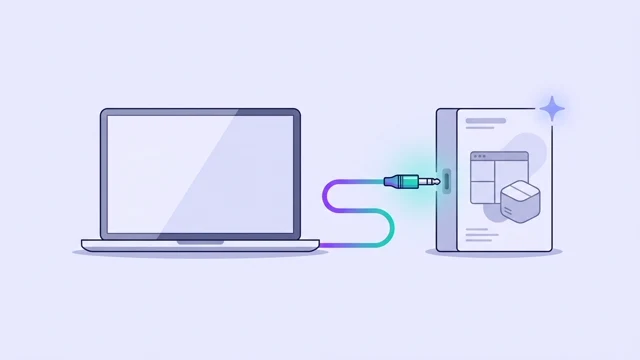
Install VB-CABLE from vb-audio.com/Cable/ (run installer as Administrator on Windows, or open the .pkg on macOS) and restart your browser.
Keep your OS speaker set to headphones
On Windows Sound Settings or macOS Sound Output, make sure your headphones remain the default output device so you can still hear your call normally.
Configure VeyraTalk audio route
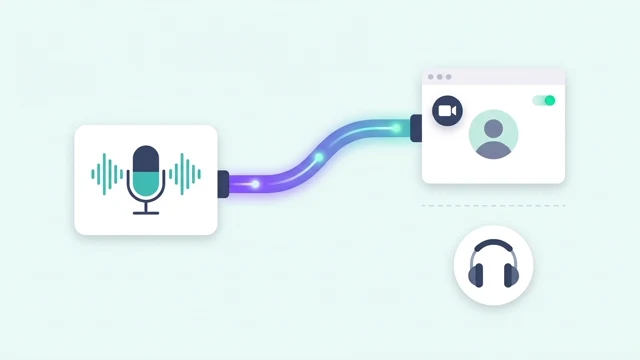
Open VeyraTalk in desktop Chrome or Edge, select Send to meeting, pick your real mic, and set Output to CABLE Input.
Select CABLE Output in your meeting app & run the test tone
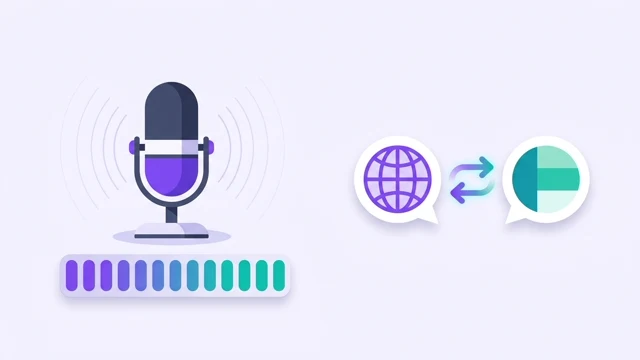
Select CABLE Output as your microphone in Google Meet, Zoom, Teams, VooV, or Slack, then click Play test tone in VeyraTalk (uses zero credits) and confirm the mic meter moves.
Guides
Common setup mistakes & instant fixes
Check these three quick items if your meeting app doesn’t show a moving microphone meter during the test tone.
CABLE Input vs CABLE Output swapped
Think of VB-CABLE as a pipe: VeyraTalk sends sound IN to CABLE Input, and your meeting app listens OUT from CABLE Output.
Browser doesn’t list new devices yet
Restart Chrome or Microsoft Edge once right after installing VB-CABLE, then grant microphone permission in VeyraTalk so device names appear.
Why you don’t hear the test tone in your headphones
That is expected! The test tone goes into CABLE Input (the virtual pipe to your call), not your headphones. Watch the microphone level bar inside Meet, Zoom, or Teams instead.
Transparent pricing
Simple pricing built for real client hours
Spoken translation, bilingual captions, and live transcription share one monthly credit balance. Paid plans include 14-day refund protection (up to 10,000 credits used).
 Free
 Lite
 Core
 ProPopular
 Max
Yearly billing includes 1 month free. See full plan comparison & calculator →
FAQ
Common questions
Straight answers on setup, pricing, and call privacy before your next meeting.
Is VB-CABLE free to use?
Yes, the standard VB-CABLE driver from VB-Audio is free (donationware) for both Windows and macOS.
Can I use VeyraTalk without installing VB-CABLE?
Yes. You can test VeyraTalk immediately in Listen privately mode on headphones and use live bilingual captions without installing any virtual audio driver.