On this page
Key takeaways
Why virtual mic routing is essential for Slack Huddles
- Bots cannot join Slack Huddles — local virtual microphone routing works immediately in any channel or DM Huddle.
- Floating captions stay visible beside your code editor, Figma file, or Slack thread during quick design/dev reviews.
- Per-client glossary keeps repo names, component names, and sprint terms exact during engineering syncs.
- Billed only while audio capture is active — ideal for short 5-minute Slack Huddles.
Live audio sample
Hear how the translated speech sounds
Can we move the launch to Thursday?
¿Podemos pasar el lanzamiento al jueves?
Video walkthrough
Watch the 1-minute setup video guide
Follow the exact clicks on screen — switch between Browser (Google Meet), Desktop apps (Zoom / Teams / VooV), and the live call demo.
 Desktop setup · Slack Huddles · 1:08
Step-by-step setup
Ready for your call in 2 minutes
Runs best in desktop Chrome or Microsoft Edge on Windows and macOS.
Slack → Preferences → Audio & video
- Slack Huddles Microphone: CABLE Output
- Slack Huddles Speaker: Headphones (zero echo)
- Chrome: [✓] Also share system audio (Slack App) or tab audio
Install VB-CABLE once
Creates the local CABLE Input / CABLE Output audio bridge on Windows or macOS.
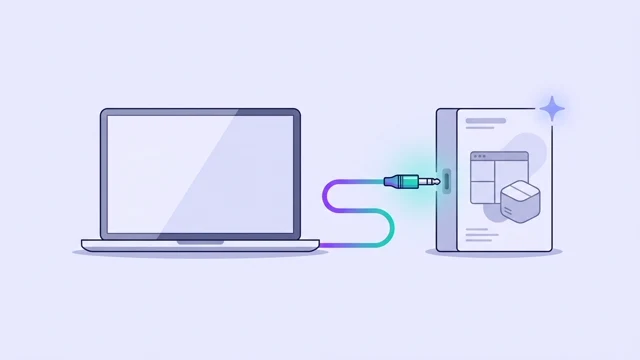
Select CABLE Output in Slack Audio Settings
In Slack → Preferences → Audio & video, choose CABLE Output as Microphone and headphones as Speaker.
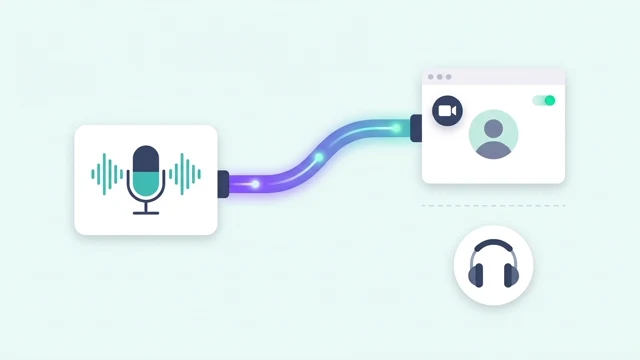
Open VeyraTalk & pick your workspace profile
Choose your real microphone, set output to CABLE Input, and pick the language pair for your channel.
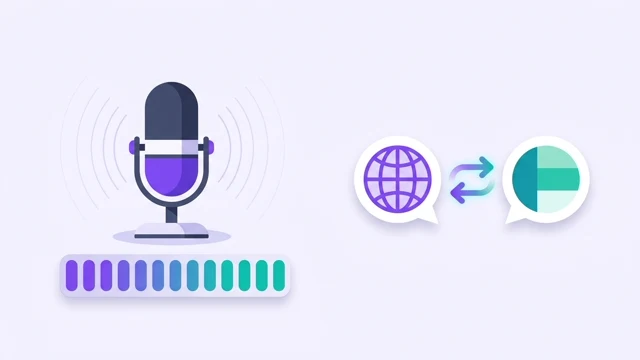
Join the Huddle & pin floating captions
Start live translation in VeyraTalk and float the caption window next to Slack while sharing your screen.
Meeting Apps
Built for fast-moving remote teams
Stop typing long Slack threads when a 5-minute Huddle can align everyone across languages.
One-click audio switching in Slack
Open Slack Preferences → Audio & video, select CABLE Output as Microphone, and you are ready for any Huddle all day.
Handles mixed tech vocabulary naturally
Mix English product or engineering terms into Vietnamese, Japanese, or Korean speech without breaking the translation.
Private listening option when you only need captions
Want to understand a fast Huddle without speaking through the virtual mic? Switch to caption mode at 1/3 the credit rate.
Transparent pricing
Simple pricing built for real client hours
Spoken translation, bilingual captions, and live transcription share one monthly credit balance. Paid plans include 14-day refund protection (up to 10,000 credits used).
 Free
 Lite
 Core
 ProPopular
 Max
Yearly billing includes 1 month free. See full plan comparison & calculator →
FAQ
Common questions
Straight answers on setup, pricing, and call privacy before your next meeting.
Why can’t AI meeting bots translate Slack Huddles?
Slack Huddles do not expose external guest join URLs for third-party meeting bots. Using a virtual microphone like VeyraTalk + VB-CABLE works natively with Slack’s own audio input.
How many credits does a 10-minute Slack Huddle use?
Spoken voice translation uses 300 credits/minute (3,000 credits for 10 minutes — covered by the monthly free plan). Translated captions only use 100 credits/minute.