On this page
Key takeaways
Why freelancers use VeyraTalk on Zoom
- Works on any Zoom meeting link — no host permissions, no Zoom Marketplace app approval, and no Zoom add-on fee.
- Use Zoom’s Audio Settings → Microphone → CABLE Output to send clear translated audio directly into the meeting.
- Turn off Zoom’s aggressive background noise suppression or keep Original Sound ready if needed for natural speech delivery.
- Start free with 3,000 credits every month and upgrade from $7/month only when your client calls grow.
Live audio sample
Hear how the translated speech sounds
Can we move the launch to Thursday?
¿Podemos pasar el lanzamiento al jueves?
Video walkthrough
Watch the 1-minute setup video guide
Follow the exact clicks on screen — switch between Browser (Google Meet), Desktop apps (Zoom / Teams / VooV), and the live call demo.
 Desktop setup · Zoom / Teams / VooV · 1:08
Step-by-step setup
Ready for your call in 2 minutes
Runs best in desktop Chrome or Microsoft Edge on Windows and macOS.
Zoom Workplace → Settings → Audio
- Zoom Microphone: CABLE Output
- Zoom Speaker: Headphones (zero echo)
- Chrome: Entire Screen + [✓] Also share system audio
Install VB-CABLE on Windows or macOS
One-time virtual audio driver installation so VeyraTalk can feed translated speech into Zoom.
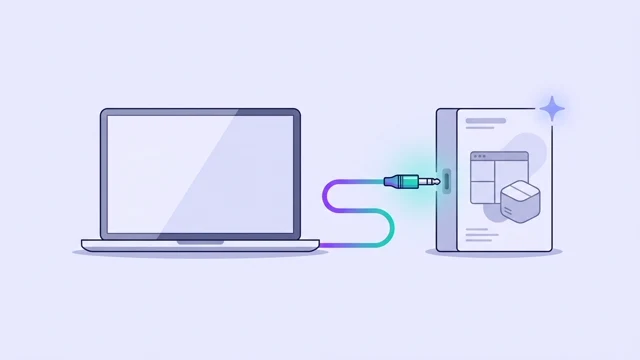
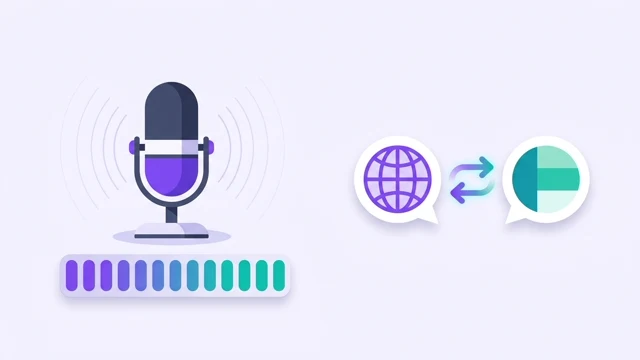
Configure VeyraTalk for your call
Open VeyraTalk in Chrome or Edge, select your real mic, set output to CABLE Input, and pick your client glossary.
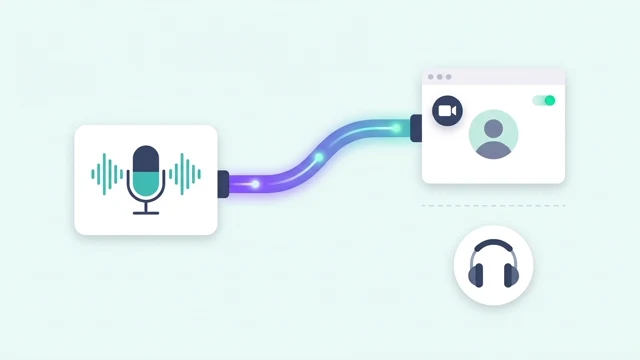
Switch Zoom’s microphone to CABLE Output
In Zoom → Audio Settings, choose CABLE Output as Microphone and your headphones as Speaker so translated audio never echoes.
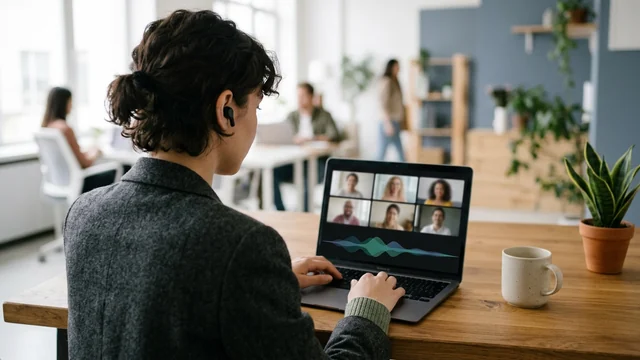
Verify with test tone & start translating
Run VeyraTalk’s test tone and verify Zoom’s Input Level bar moves before unmuting with your client.
Meeting Apps
Built for client-hosted Zoom calls
When a prospective client sends you a Zoom invite, you cannot ask them to upgrade their Zoom plan or admit a third-party AI bot. VeyraTalk stays completely on your side.
Zero host setup required
Join as a regular participant on any Zoom call and speak in Vietnamese, Japanese, Spanish, or 60 languages while clients hear natural English (or vice versa).
Personal voice cloning on Core, Pro & Max
Record a short voice sample so clients on Zoom hear translated speech in your familiar tone instead of a generic robotic voice.
Clean transcript export after the call
Download the session transcript right from your browser tab to draft your Zoom follow-up email — nothing is stored on VeyraTalk servers.
Transparent pricing
Simple pricing built for real client hours
Spoken translation, bilingual captions, and live transcription share one monthly credit balance. Paid plans include 14-day refund protection (up to 10,000 credits used).
 Free
 Lite
 Core
 ProPopular
 Max
Yearly billing includes 1 month free. See full plan comparison & calculator →
FAQ
Common questions
Straight answers on setup, pricing, and call privacy before your next meeting.
Does VeyraTalk work on both the Zoom desktop app and Zoom web client?
Yes. Any Zoom app on Windows or macOS lets you pick CABLE Output as your microphone. For incoming guest captions, you can capture Zoom web tab audio or system/window audio in Chrome or Edge.
Will Zoom show a recording notification or AI bot?
No bot joins your Zoom call and VeyraTalk never records or stores your call audio. Always inform participants according to your client’s consent policy.