On this page
Key takeaways
Why VeyraTalk fits enterprise Teams calls
- Zero Microsoft 365 tenant permissions, OAuth scopes, or Teams Marketplace installs needed.
- No meeting bot ever joins the Teams lobby — eliminates awkward external-guest security warnings.
- Real-time audio processing with zero saved recordings or transcripts aligns cleanly with strict client NDAs.
- Custom client glossaries preserve enterprise product names, Jira tickets, SLA tiers, and technical terms.
Live audio sample
Hear how the translated speech sounds
Can we move the launch to Thursday?
¿Podemos pasar el lanzamiento al jueves?
Video walkthrough
Watch the 1-minute setup video guide
Follow the exact clicks on screen — switch between Browser (Google Meet), Desktop apps (Zoom / Teams / VooV), and the live call demo.
 Desktop setup · Microsoft Teams · 1:08
Step-by-step setup
Ready for your call in 2 minutes
Runs best in desktop Chrome or Microsoft Edge on Windows and macOS.
Microsoft Teams → Settings → Devices
- Microsoft Teams Microphone: CABLE Output
- Microsoft Teams Speaker: Headphones (zero echo)
- Chrome: [✓] Also share system audio (Desktop) or tab audio (Web)
Set up VB-CABLE once
Install VB-CABLE on your Windows or macOS computer to create a clean virtual microphone route.
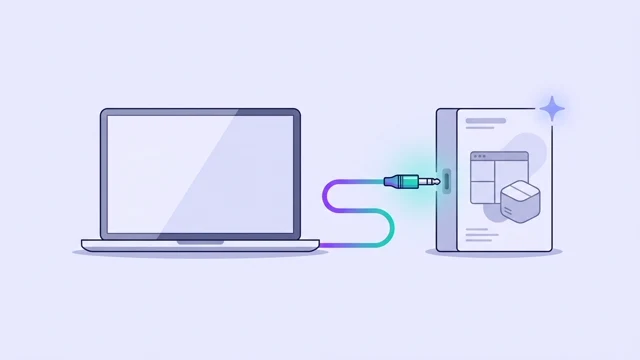
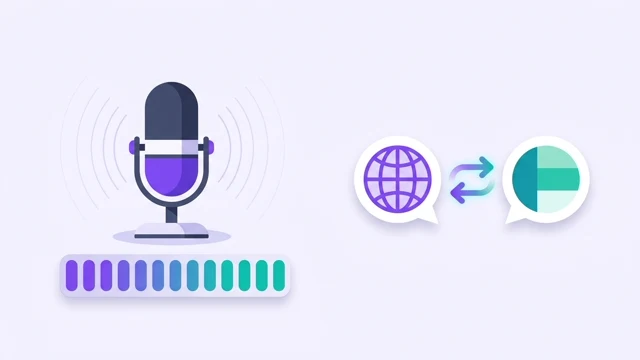
Start VeyraTalk in Chrome or Edge
Select your physical microphone as input, CABLE Input as output, and load your client’s saved profile & glossary.
Pick CABLE Output in Teams Device Settings
In Microsoft Teams → Settings → Devices (or before clicking Join), choose CABLE Output for Microphone and your headphones for Speaker.
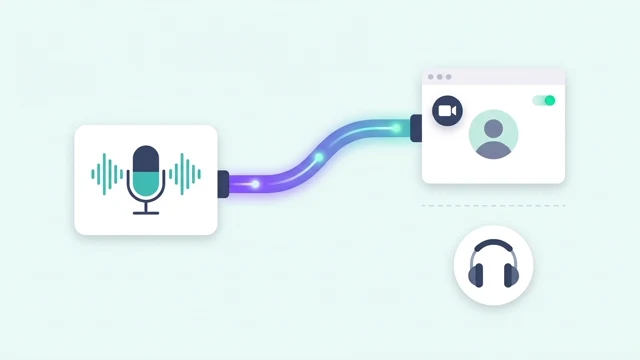
Test audio & join the Teams meeting
Trigger VeyraTalk’s built-in test tone to verify Teams hears the virtual mic, then speak naturally.

Meeting Apps
Translate corporate Teams calls smoothly
Built for consultants, agency leads, and remote engineers joining client-owned Microsoft Teams meetings every week.
Bypass plugin restrictions safely
Teams treats CABLE Output like any standard USB microphone, so it works whether you join via Teams desktop or browser.
Bilingual captions for rapid Q&A
Read original English, German, or Japanese stakeholder questions alongside your native translation in a floating window above Teams.
Predictable pay-by-plan pricing
Skip annual enterprise interpreter licenses. Start with 3,000 free monthly credits and pick Lite ($7), Core ($15), Pro ($39), or Max ($99).
Transparent pricing
Simple pricing built for real client hours
Spoken translation, bilingual captions, and live transcription share one monthly credit balance. Paid plans include 14-day refund protection (up to 10,000 credits used).
 Free
 Lite
 Core
 ProPopular
 Max
Yearly billing includes 1 month free. See full plan comparison & calculator →
FAQ
Common questions
Straight answers on setup, pricing, and call privacy before your next meeting.
Does Microsoft Teams IT admin need to approve VeyraTalk?
No. VeyraTalk does not install a Teams app or request Microsoft Graph / tenant permissions. It runs in your browser and outputs through your local virtual microphone.
Does VeyraTalk store Teams meeting audio or transcripts?
No. Audio is processed in real time and never recorded or saved. Your meeting history only logs session time and credit usage.